If the PC still has a working mouse or touchscreen, open Windows Bluetooth settings, add a device, then open Never Away on your phone and tap Connect. If the mouse died, use the keyboard instead: press Win + I, choose Bluetooth & devices and add the phone. Best of all, pair the phone before anything fails, so it reconnects by itself when you need it.
When a phone saves the day
Keyboards and mice fail at bad moments: the battery dies six hours into a job, a drink goes over the keys, a USB receiver goes missing, or the cable gives up. If you have a phone, you already hold a keyboard and a trackpad. With Never Away the phone is recognised by Windows as a Bluetooth keyboard and mouse, so you can type, click, scroll and use shortcuts until you can replace the real ones. It also works from the sofa or across the room, anywhere in Bluetooth range.
Set it up before you need it
The easy route is to pair the phone while everything still works. Follow the pairing guide once. From then on, the app reconnects by itself when the PC and phone are in range. When the keyboard dies you just open the app.
If you have never paired the phone, you can still do it with one working input device, as below.
If the mouse is dead
You can pair using the keyboard alone:
- Press Win + I to open Settings.
- Use Tab and the arrow keys to reach Bluetooth & devices and press Enter. Choose Add device, then Bluetooth.
- On the phone, open Never Away, turn Bluetooth on and tap Connect. Select the phone's name in the list and press Enter.
On a touchscreen laptop you can also tap through the same screens.
If the keyboard is dead
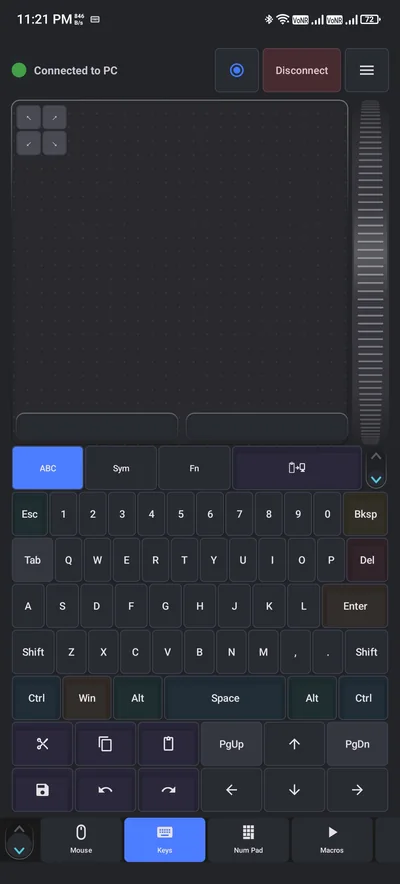
Use the mouse or the laptop's trackpad. Click Start, open Settings, choose Bluetooth & devices, then Add device and Bluetooth. Open Never Away on the phone, tap Connect and choose the phone on the PC. The Keys tab then gives you a full keyboard on the phone, with ABC, Sym and Fn pages, Ctrl, Alt, Win and Shift, and quick keys for cut, copy, paste, save and undo.
If both are dead
Windows cannot be told to add a device without some way to click or type. Try these:
- Plug in any wired USB keyboard or mouse, even for two minutes, to pair the phone.
- On a laptop, use the built-in keyboard and trackpad.
- On a touchscreen device, use the screen.
- If the phone was paired before, open the app first, since it can reconnect by itself.
What a phone cannot do
- Before Windows starts. Bluetooth devices generally do not work in BIOS setup, at the boot menu or at a disk-encryption PIN screen, unless the PC supports it. Keep a wired keyboard for these.
- Long typing sessions. It is good for shortcuts, short messages and getting a job over the line. A physical keyboard is faster for a full report.
- Out-of-range work. Bluetooth range is about 10 metres (33 ft) in open space.
Quick checks before you give up on the real keyboard
- Replace or recharge the batteries, and check that the keyboard or mouse is switched on.
- Move the USB receiver to another port, closer to the device.
- Check the keyboard is paired in Bluetooth settings and not showing as disconnected.
- Try the keyboard on another PC to see if the fault is the PC or the keyboard.
Mouse and keyboard spares are cheap, but the phone is already in your pocket.
Questions people ask
Can I use my phone as a keyboard if my PC keyboard stopped working?
Yes. With an app such as Never Away, the phone connects as a Bluetooth keyboard and mouse. You need some way to open Windows Bluetooth settings the first time, such as a mouse, a touchscreen or a built-in laptop trackpad.
How do I pair using only a keyboard?
Press Win + I, use Tab and the arrow keys to reach Bluetooth & devices, then Add device and Bluetooth, and select the phone while the app is connecting.
Will a phone keyboard work in the BIOS?
Generally no. Bluetooth keyboards do not work before Windows loads unless the hardware supports it. Use a wired keyboard for BIOS or encryption PIN screens.
Do I need to install software on the PC?
No. Windows accepts Bluetooth keyboards and mice without extra software.
Does it reconnect by itself later?
Yes. After the first pairing the app reconnects when the PC and phone are in range.
Can I use it as a mouse too?
Yes. The Mouse tab is a trackpad with click bars and a scroll wheel, and Keys has a trackpad above the keyboard.
Keep reading
A backup that is always in your pocket
Never Away is free on Google Play. Pair once, and it is ready when your keyboard is not.
For reference. Steps and screens described here are as they appear in Never Away and in Windows at the time of writing, and menu names can differ between versions of Windows, Android and other software, so test any setup before you depend on it. Never Away is an independent app by Trishunya Infotech. Windows, Microsoft Teams, PowerPoint, Excel, AutoCAD and Bluetooth are trademarks of their respective owners and are named only to describe what the app works with. Follow your employer's IT and security policies when you use any tool on a work computer.