Pair the phone with the PC once through Never Away. After that, the Mouse tab is a trackpad with click bars and a scroll wheel, Keys is a full keyboard, and Media is a volume dial with play, pause, stop and next. It works anywhere in Bluetooth range, about 10 metres (33 ft) in open space, and the PC needs no extra software.
The living room problem
A laptop or small PC on a TV is a good media centre, until you need to click something. A wireless keyboard and mouse live in a drawer, their batteries are flat, and the lap tray is not stable. The phone you are holding is a better remote.
Pair once
Follow the pairing steps: open Never Away, tap Connect, and add the phone as a Bluetooth device on the PC. From the second time, the app reconnects when you open it. Make sure the PC's Bluetooth radio is within range of where you sit. If the PC is behind the TV, metal and glass can weaken the signal, so test from your seat.
Browse and click from the sofa
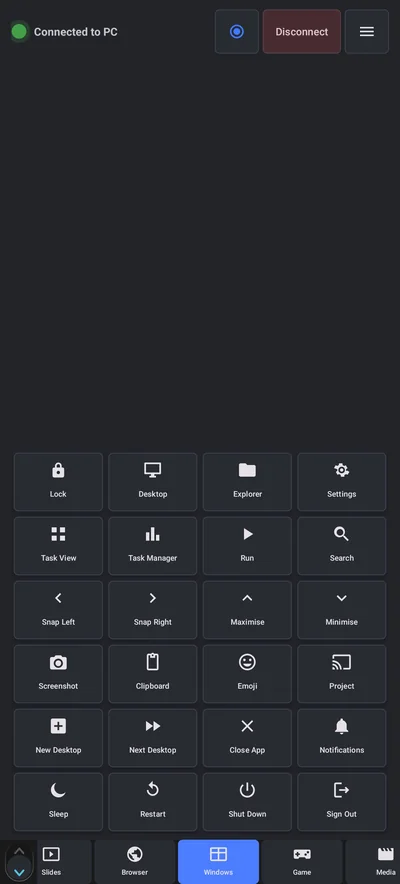
On the Mouse tab, slide your thumb to move the cursor. Tap to click, hold the left bar to drag, and scroll with the wheel on the right or with two fingers. Corner buttons send the pointer to a corner, which is useful on a big TV screen when a menu hides at the edge. Browser, Windows and Slides tabs add one-tap buttons for tabs, refresh, zoom, find and window snapping.
Type a search or a password
Switch to Keys for a full keyboard. You can type a search, a web address or a message. If you copy text on the phone, the clipboard key sends it to the PC, which is faster than typing a long address. See the clipboard guide. Type a password with care, since the TV may show the screen to the room.
Volume and playback
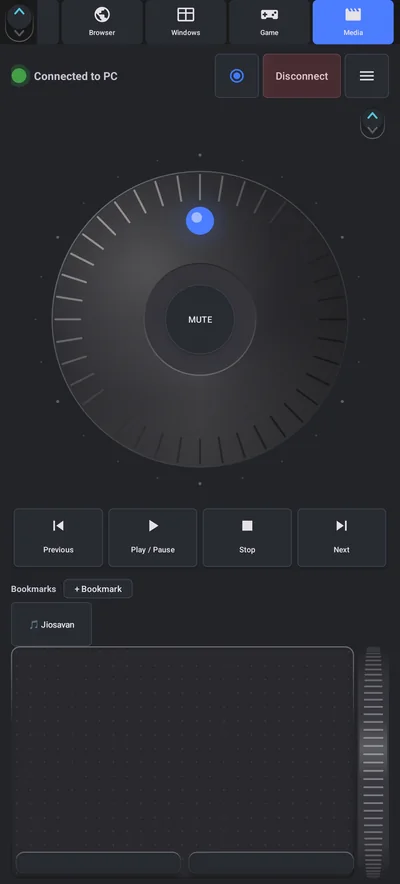
The Media tab has a large volume dial with Mute in the middle, and Previous, Play or Pause, Stop and Next buttons. Turn the dial with your thumb as you would a real knob. The volume guide covers it.
Tips for a living room setup
- Set the PC to not sleep during a film. Windows can sleep when there is no input. See how to keep it awake.
- Use the app's Auto-lock and a long phone screen timeout so the phone does not go dark at the key moment.
- Charge the phone. Bluetooth sessions use battery.
- Use Full screen for a launcher pad. You can turn a set of shortcuts into a full-screen pad for your favourite apps.
- Mind the old pairing. If the phone was paired to the PC as a normal Bluetooth device, remove the old pairing first.
Questions people ask
Can I use my phone as a mouse for a PC connected to a TV?
Yes. With Never Away the phone appears as a Bluetooth keyboard and mouse. Pair it once, then use the Mouse tab as a trackpad.
How far can I sit from the PC?
About 10 metres (33 ft) in open space. Walls, glass and metal shorten it, so test from your seat.
Can I control the volume from the phone?
Yes. The Media tab has a volume dial, mute, and playback buttons that control the PC.
Do I need to install anything on the TV PC?
No. Windows already supports Bluetooth keyboards and mice.
Will it work with a smart TV or streaming stick?
Never Away is made for Windows PCs. It does not control a smart TV or a streaming stick on its own.
How do I stop the PC sleeping while I watch?
Change the screen and sleep times in Windows settings, or see the guide on keeping Windows awake.
Keep reading
Leave the keyboard in the drawer
Never Away is free on Google Play. Trackpad, keyboard and volume dial for your PC.
For reference. Steps and screens described here are as they appear in Never Away and in Windows at the time of writing, and menu names can differ between versions of Windows, Android and other software, so test any setup before you depend on it. Never Away is an independent app by Trishunya Infotech. Windows, Microsoft Teams, PowerPoint, Excel, AutoCAD and Bluetooth are trademarks of their respective owners and are named only to describe what the app works with. Follow your employer's IT and security policies when you use any tool on a work computer.