Copy the text on your phone as usual. Open Never Away on the Keys tab, click into the place on the PC where the text should go, and press the clipboard key. The app sends the phone's copied text to the PC over Bluetooth. No account, no cloud and nothing on the PC. It is for short text; for large files use another method.
The problem
You copy a long web address, an order number or a paragraph on your phone and need it on the PC. The usual routes all have friction. Email yourself and wait. Open a cloud notes app and sign in on the PC. Install a sync program. Type it out by hand and make a mistake on the third character.
If your phone is already connected to the PC as a Bluetooth keyboard through Never Away, there is a shorter path.
Send it in four steps
- Copy the text on the phone, with the normal long-press, Copy.
- Click where it should go on the PC, such as a document, a search box or a form field, so the cursor is there.
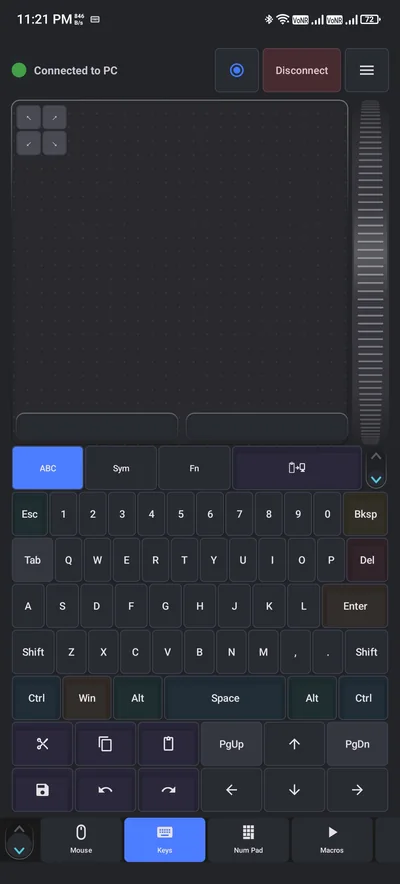
- Open the Keys tab in Never Away and press the clipboard key. It is separate from the Paste key, which sends Ctrl + V to the PC's own clipboard.
- Check the text arrived, and correct anything if needed.
What it is good for
- Addresses, order numbers, tracking numbers and reference codes.
- Links from a message or a QR code you scanned.
- A paragraph or a few lines from a phone chat or note.
- A search term in a language your PC keyboard layout cannot type easily.
Care points
- Click first. The text goes where the PC's cursor is. If no field has focus, nothing useful happens.
- Keep it short. It is meant for lines of text, not long documents or files.
- Passwords. Do not send a password to a shared or public PC, and do not copy passwords where other apps can read the phone clipboard. A password manager with its own autofill is the better route.
- Check the result. Characters outside the PC's keyboard layout may not come through the same way, so check names and symbols.
Other ways to move text and files
| Method | Needs | Best for |
|---|---|---|
| Never Away clipboard key | Phone already connected over Bluetooth | Short text, quick, no sign-in |
| Email or message to yourself | Internet on both | Anything, with a delay |
| A cloud notes app | Account on both, internet | Notes you want to keep |
| Microsoft Phone Link | Microsoft account, setup on both | Messages, photos and notifications on the PC |
| USB cable or nearby share | Cable or compatible apps | Files and photos |
For files, use the last row. The phone side of Never Away is built for input: keys, mouse, macros, shortcuts and remotes. See the pairing guide if you have not connected yet.
Questions people ask
How do I copy text from my phone to my PC over Bluetooth?
Connect the phone with Never Away, copy the text on the phone, click where it should go on the PC, and press the clipboard key on the Keys tab.
Do I need an account or internet?
No. The text goes over the Bluetooth connection. Bluetooth, typing and macros work without internet.
Do I need to install anything on the PC?
No. Windows already accepts Bluetooth keyboards.
Can I send files this way?
No. It sends text. Use a cable, a nearby share feature or a cloud drive for files.
Is it safe for passwords?
Avoid it. Do not send passwords to shared or public PCs, and use a password manager with its own autofill.
What is the difference between the clipboard key and the Paste key?
The Paste key sends Ctrl + V to the PC and pastes the PC's own clipboard. The clipboard key sends the text copied on the phone.
Keep reading
Copy on the phone, land on the PC
Never Away is free on Google Play. No account, nothing to install on your PC.

For reference. Steps and screens described here are as they appear in Never Away and in Windows at the time of writing, and menu names can differ between versions of Windows, Android and other software, so test any setup before you depend on it. Never Away is an independent app by Trishunya Infotech. Windows, Microsoft Teams, PowerPoint, Excel, AutoCAD and Bluetooth are trademarks of their respective owners and are named only to describe what the app works with. Follow your employer's IT and security policies when you use any tool on a work computer.