Install Never Away on your Android phone, open it, turn Bluetooth on and tap Connect. On the PC, go to Settings, Bluetooth & devices, Add device, Bluetooth, and pick the phone's name. When the light in the app turns green, the phone is a Bluetooth keyboard and mouse. Next time it reconnects by itself. Windows treats it like any wireless keyboard, so nothing is installed on the PC.
How it works
Bluetooth keyboards and mice speak a standard language called HID, the human interface device profile. Windows already knows it, which is why you can add a wireless keyboard without installing anything. Never Away makes the phone speak the same language. To the PC the phone is one more Bluetooth keyboard and mouse.
That is different from a remote desktop app. A remote desktop app shows you the PC's screen and needs a program on the computer. Never Away does not show the screen. You look at the PC's own monitor and use the phone as the input device.
What you need
- An Android phone running Android 12 or newer, with Bluetooth, and the Never Away app from Google Play. It is free.
- A Windows PC with Bluetooth, built in or from a small USB adapter. Never Away is for Windows PCs.
- Nothing else. There is no program to put on the PC, no driver, no account and no cable.
Pair it in four steps
- Open the app and tap Connect. Turn Bluetooth on first. The app starts advertising the phone as a keyboard and mouse and shows the name to look for on your PC.
- On the PC, add a device. In Windows 11 open Settings, Bluetooth & devices, Add device, then Bluetooth. In Windows 10 open Settings, Devices, Bluetooth & other devices, then Add Bluetooth or other device.
- Pick the phone from the list. It appears under the name the app showed. Select it and accept any pairing prompt on both screens.
- Wait for green. The connection light in the app turns green and the trackpad and keyboard work straight away.
Important: the app has to be the one that starts the connection. If your phone is already paired to Windows as a plain Bluetooth device, remove that pairing in Windows first, then use the Connect button inside Never Away. See the connection fix guide for the full checklist.
From the second time on, the app reconnects by itself when both devices are in range.
Using the mouse, keyboard and number pad
The tabs along the top or bottom of the app switch between the tools. The first three are the ones that replace a keyboard and mouse.
Mouse
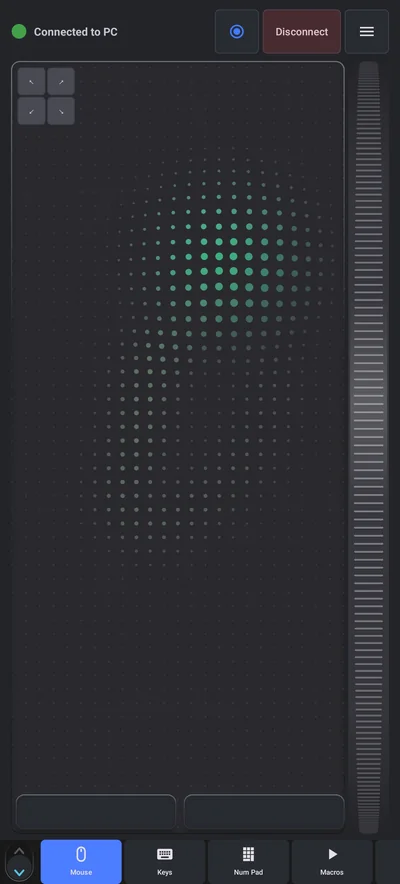
Slide a finger on the trackpad to move the cursor. Tap to click, or use the Left and Right Click bars. Scroll with the wheel on the right edge, or with two fingers. Hold the left bar to drag, and tap it again to let go. Four corner buttons send the cursor straight to a corner of the screen.
Keys
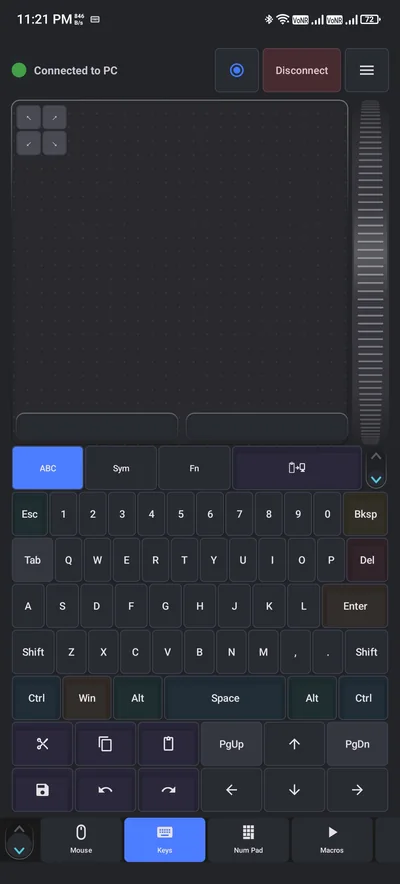
Keys gives you a full keyboard with a trackpad above it. ABC, Sym and Fn switch between letters, symbols and the F-keys. Tap Ctrl, Alt, Win or Shift and then a letter for shortcuts. A row of quick keys sends cut, copy, paste, save, undo, redo and the arrows. See the Windows shortcuts cheat sheet for combinations worth knowing.
Num Pad
A full number pad for spreadsheets, with a calculator mode that works on its own, even with no PC connected.
Phone as keyboard versus remote desktop apps
| Phone as Bluetooth keyboard and mouse | Remote desktop app | |
|---|---|---|
| Software on the PC | None | Yes, a server or helper program |
| Connection | Bluetooth, no network needed | Wi-Fi or internet |
| Shows the PC screen on the phone | No, you use the PC monitor | Yes |
| Good for | Typing, clicking, shortcuts, slides, volume, from within Bluetooth range | Controlling a PC you cannot see, such as one in another room or city |
| Setup | Pair once | Install, sign in or share a code, allow through the firewall |
If you can see the PC's screen, the Bluetooth route is simpler and needs nothing on the computer. If the PC is somewhere you cannot see, you need a remote desktop app instead.
What it cannot do
- Work without Bluetooth. Both devices need it, and the phone has to stay within Bluetooth range, which is about 10 metres (33 ft) in open space and less through walls.
- Work before Windows starts. Bluetooth devices generally do not work in BIOS setup or at a disk-encryption PIN screen, unless the PC hardware supports it. Keep a wired keyboard for those.
- Show the PC screen. It is an input device only.
- Replace a keyboard for heavy typing all day. Typing on glass is fine for a few lines and shortcuts, but a physical keyboard is faster for long documents.
If it will not connect
Nearly all failures come from one of three things: an old pairing left in Windows, Bluetooth switched off on one side, or the phone's battery saver closing the app. Work through the connection checklist.
More than a keyboard
Once the phone is paired, the same connection does more than type. It records macros, holds one-tap shortcut buttons, acts as a presenter remote and a volume dial, and works as a game pad. The app tour goes through every tab.
Questions people ask
Can I use my Android phone as a keyboard and mouse for my PC?
Yes. An app such as Never Away makes the phone appear to Windows as a Bluetooth keyboard and mouse. You pair it from Windows Bluetooth settings like any wireless keyboard.
Do I need to install anything on my PC?
No. Windows already supports Bluetooth keyboards and mice, so there is no program, driver or cable to add to the PC.
Does it work with a Mac, Linux or iPhone?
Never Away is an Android app, for Android 12 and newer, made for Windows PCs. It is not designed for Mac, Linux or iPhone.
How far can I be from the PC?
Within Bluetooth range, which is about 10 metres (33 ft) in open space. Walls and interference shorten it.
Do I need an internet connection?
No. Bluetooth, typing, macros and shortcuts work without internet. The app is supported by ads, which need a connection to load.
Is my phone screen shown on the PC or the PC screen on the phone?
Neither. The phone only sends keystrokes and mouse movements. You keep watching the PC on its own monitor.
Keep reading
Pair your phone in a minute
Never Away is free on Google Play. Nothing to install on your PC.
For reference. Steps and screens described here are as they appear in Never Away and in Windows at the time of writing, and menu names can differ between versions of Windows, Android and other software, so test any setup before you depend on it. Never Away is an independent app by Trishunya Infotech. Windows, Microsoft Teams, PowerPoint, Excel, AutoCAD and Bluetooth are trademarks of their respective owners and are named only to describe what the app works with. Follow your employer's IT and security policies when you use any tool on a work computer.