The shortcuts most people use daily are Ctrl + C, V, X, Z and S for editing, Win + D for the desktop, Win + E for File Explorer, Win + L to lock, Alt + Tab to switch windows, Win + Shift + S for a screenshot, Win + V for clipboard history and Ctrl + Shift + Esc for Task Manager. Learn five, then add more as you notice what you repeat.
Editing and text
These work in almost every program.
| Keys | What it does |
|---|---|
| Ctrl + C, Ctrl + X, Ctrl + V | Copy, cut, paste |
| Ctrl + Z, Ctrl + Y | Undo, redo |
| Ctrl + A | Select all |
| Ctrl + S | Save |
| Ctrl + F | Find |
| Ctrl + P | |
| Ctrl + B, Ctrl + I, Ctrl + U | Bold, italic, underline |
| Ctrl + Backspace | Delete the previous word |
| Ctrl + Left or Right arrow | Move one word at a time |
| Ctrl + Shift + Left or Right arrow | Select one word at a time |
| Home, End | Go to the start or end of the line |
| Ctrl + Home, Ctrl + End | Go to the start or end of the document |
Windows and apps
| Keys | What it does |
|---|---|
| Alt + Tab | Switch between open windows |
| Win + Tab | Task View, all windows and desktops |
| Alt + F4 | Close the current window or app |
| Win + D | Show the desktop, press again to bring windows back |
| Win + M | Minimise all windows |
| Win + Left or Right arrow | Snap a window to the left or right half |
| Win + Up arrow | Maximise the window |
| Win + Down arrow | Restore or minimise the window |
| Win + Shift + Left or Right arrow | Move a window to another monitor |
| Win + R | Open the Run box |
| Win + E | Open File Explorer |
| Win + S | Search |
| Win + 1 to 9 | Open or switch to the app pinned at that position on the taskbar |
Virtual desktops
Virtual desktops keep different jobs apart, for example one for work and one for personal.
| Keys | What it does |
|---|---|
| Win + Ctrl + D | Create a new desktop |
| Win + Ctrl + Left or Right arrow | Switch to the previous or next desktop |
| Win + Ctrl + F4 | Close the current desktop |
Screenshots and clipboard
| Keys | What it does |
|---|---|
| Win + Shift + S | Snip part of the screen to the clipboard |
| Print Screen | Capture the whole screen to the clipboard |
| Win + Print Screen | Save a full screenshot as a file in the Screenshots folder |
| Win + V | Clipboard history |
| Win + . (period) | Emoji panel |
System tools
| Keys | What it does |
|---|---|
| Win + L | Lock the PC |
| Ctrl + Shift + Esc | Open Task Manager |
| Ctrl + Alt + Delete | Security screen: lock, switch user, sign out, Task Manager |
| Win + I | Open Settings |
| Win + X | Power user menu |
| Win + P | Choose how to use a second screen or projector |
| Win + A | Quick settings (Windows 11) |
| Win + K | Cast to a wireless display |
Browser
These work in Chrome, Edge and Firefox.
| Keys | What it does |
|---|---|
| Ctrl + T | New tab |
| Ctrl + W | Close tab |
| Ctrl + Shift + T | Reopen the last closed tab |
| Ctrl + Tab, Ctrl + Shift + Tab | Next, previous tab |
| Ctrl + L | Select the address bar |
| F5, Ctrl + R | Refresh |
| Ctrl + plus, Ctrl + minus, Ctrl + 0 | Zoom in, zoom out, reset zoom |
| Ctrl + F | Find on the page |
File Explorer
| Keys | What it does |
|---|---|
| F2 | Rename the selected file |
| Alt + Enter | Properties |
| Ctrl + Shift + N | New folder |
| Alt + Up arrow | Go up one folder |
| Alt + Left or Right arrow | Back, forward |
| Ctrl + Shift + E | Expand folders to the current one |
Shortcuts can differ slightly between Windows versions and individual programs. If one does nothing, check the program's own menu.
Put them on your phone
Knowing a shortcut is one thing. Reaching for the right three fingers every time is another. With Never Away connected, the phone sends the same keys, and you can make any of them a button.
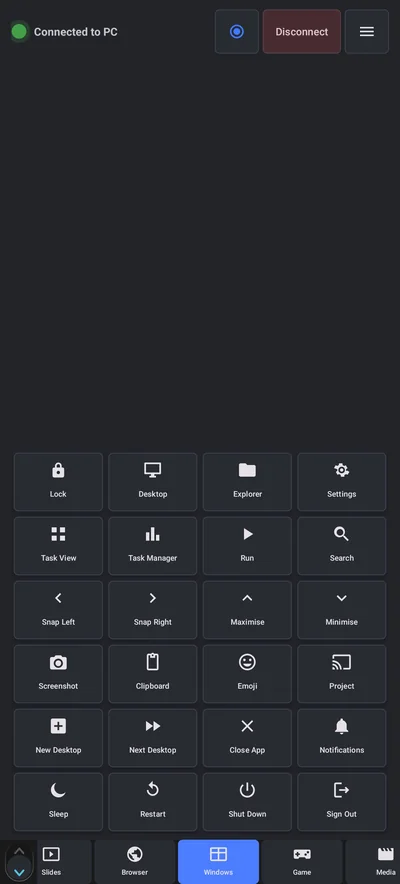
- The Windows tab already has buttons for Lock, Desktop, Explorer, Settings, Task View, Task Manager, Run, Search, Snap Left, Snap Right, Maximise, Minimise, Screenshot, Clipboard, Emoji, Project, New Desktop, Next Desktop, Close App, Notifications, Sleep, Restart, Shut Down and Sign Out.
- On Shortcuts, tap Add, choose a key combination and pick it from the Windows shortcut library, or build your own. Name it, give it an icon, and tap to run.
- On Keys, tap Ctrl, Alt, Win or Shift and then a letter, with quick keys for cut, copy, paste, save, undo and redo along the bottom.
For application-specific sets, such as Excel or AutoCAD, see using the phone as a macro pad.
Questions people ask
What are the most useful Windows shortcuts?
Ctrl + C, V, X, Z and S for editing, Win + D for the desktop, Win + E for Explorer, Win + L to lock, Alt + Tab to switch windows, Win + Shift + S for screenshots, Win + V for clipboard history and Ctrl + Shift + Esc for Task Manager.
How do I take a screenshot of part of the screen?
Press Win + Shift + S, drag over the area, and it is copied to the clipboard. You can paste it into a document or an email.
How do I switch between virtual desktops?
Press Win + Ctrl + Left or Right arrow. Create a new one with Win + Ctrl + D.
How do I lock my PC from the keyboard?
Press Win + L.
Can I put these shortcuts on a phone button?
Yes. In Never Away, the Windows tab has ready-made buttons and the Shortcuts tab lets you add any key combination as a one-tap button.
Do these shortcuts work on both Windows 10 and Windows 11?
Most do. A few, such as Win + A for quick settings, differ between versions. If one does nothing, check your version.
Keep reading
Shortcuts, one tap each
Never Away is free on Google Play. Turn the shortcuts you use into buttons on your phone.
For reference. Steps and screens described here are as they appear in Never Away and in Windows at the time of writing, and menu names can differ between versions of Windows, Android and other software, so test any setup before you depend on it. Never Away is an independent app by Trishunya Infotech. Windows, Microsoft Teams, PowerPoint, Excel, AutoCAD and Bluetooth are trademarks of their respective owners and are named only to describe what the app works with. Follow your employer's IT and security policies when you use any tool on a work computer.