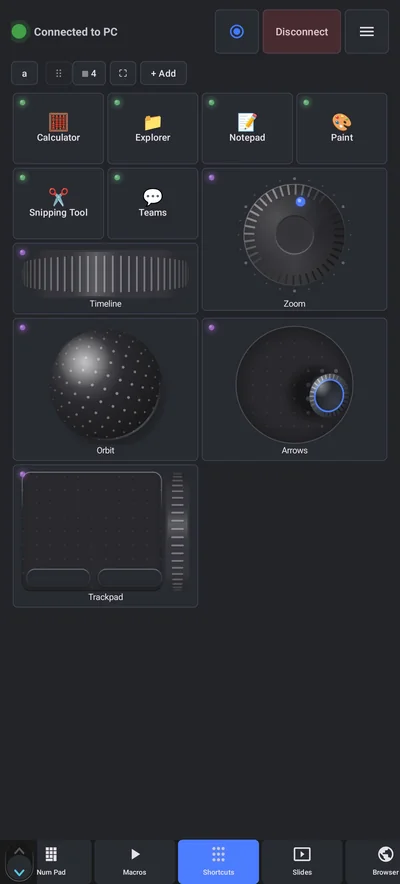
Connect the phone through Never Away, open the Shortcuts tab, tap Add and choose Key combo. Pick or type the keys, such as Ctrl + Shift + L or Alt, H, O, I, name the button and save it. Cells can also be a dial, a joystick, a trackball or a roller, so zoom, pan and orbit are one gesture. Go full screen and the phone is a second control screen.
Why a pad beats the menus
Excel, AutoCAD, Word: every day the same commands, buried under menus, tabs and dropdowns. A single command can be five clicks. Keyboard shortcuts help, but some need three fingers or a four-key sequence you never quite remember.
A macro pad turns each command into one labelled button. A dedicated pad is an extra piece of hardware. Never Away turns the phone you already own into one. It is connected over Bluetooth, so the PC needs nothing installed, and it can sit next to the keyboard as a second control screen.
Build a button
- Connect the phone to the PC.
- Open the Shortcuts tab and tap Add.
- Choose a type: software to launch a program, macro to play a recorded macro, key combo to send keys, or link to open a website.
- For a key combo, pick from the Windows shortcut library or enter your own keys.
- Name the button and choose an emoji or your own image, then save it.
Tap a button to run it. Long-press to edit. Tags group buttons into pages such as Excel or AutoCAD, and you can show one to three columns.
Excel: buttons worth adding
These are standard Excel shortcuts that are easy to forget and quick to reach from a button.
| Keys | What it does |
|---|---|
| Ctrl + Shift + L | Turn filters on or off |
| Alt, H, O, I | AutoFit column width |
| Alt, H, O, A | AutoFit row height |
| Alt, H, M, C | Merge and centre |
| Alt + = | AutoSum |
| Ctrl + 1 | Format Cells |
| Ctrl + Alt + V | Paste Special |
| Ctrl + T | Create a table |
| Ctrl + ; | Enter today's date |
| Ctrl + Shift + ; | Enter the current time |
| F4 | Repeat the last action, or cycle absolute references |
The key sequences with commas, such as Alt, H, O, I, are pressed one after another, not together.
AutoCAD and other drawing programs
In AutoCAD you can type a command alias, then Enter. A button that sends the letters and Enter is a one-tap command. The aliases below are the common defaults, and your set may differ.
| Alias | Command |
|---|---|
| L | Line |
| C | Circle |
| TR | Trim |
| EX | Extend |
| M | Move |
| CO | Copy |
| O | Offset |
| MI | Mirror |
| RO | Rotate |
| SC | Scale |
| F | Fillet |
| Z | Zoom |
The function keys F3 for object snap, F8 for ortho and F12 for dynamic input are also good buttons.
Word and PowerPoint
| Keys | What it does |
|---|---|
| Ctrl + Alt + 1, Ctrl + Alt + 2 | Heading 1, Heading 2 |
| Ctrl + Shift + N | Normal style |
| Ctrl + K | Insert a link |
| Ctrl + Shift + C, Ctrl + Shift + V | Copy and paste formatting |
| F7 | Spelling and grammar |
| Alt + Shift + D | Insert the date |
Dials, joystick and trackball
Not every command suits a button. Zooming, panning and orbiting are continuous. A cell on the Shortcuts page can also be a dial, a joystick, a trackball, a roller or a trackpad. Bind a pair of keys to a dial, such as Ctrl plus and Ctrl minus, and turning it zooms in and out. A joystick can pan, and a trackball can orbit in a 3D program. They suit CAD and 3D programs well.
Layout, tags and full screen
Put each program on its own page with a tag, and switch pages from the page bar. Choose the number of columns. Tap Full screen and the phone becomes a launcher pad that you can rotate and add a clock to. Lay it beside the keyboard and it is a second control screen. Keep the phone charged, and set a long screen timeout or use the app's Auto-lock.
Share a layout
Build the whole layout once and export it as a .mti file. The app has 35 built-in presets to start from, and there is an online MTI Generator for designing a layout in the browser and loading it onto the phone. The guide to .mti files explains how it works.
Questions people ask
Can I use my phone as a macro pad for Excel?
Yes. Connect through Never Away, add Key combo buttons for the shortcuts you use, and tap them from the phone. The PC needs no software.
Is this an alternative to a Stream Deck?
It does a similar job for keys, macros, programs and links, using a phone you already own. It does not have physical keys, so you tap glass.
Can I make a dial that zooms?
Yes. A cell can be a dial, and you can bind a pair of keys to it, such as Ctrl plus and Ctrl minus.
Can I use my own icons?
Yes. Each button can have an emoji or your own image.
Can I use it with AutoCAD or SketchUp?
Yes. It sends keystrokes and pointer movements, so any program that responds to keyboard commands can be controlled. Dials, joystick and trackball suit zoom, pan and orbit.
Can I share my button layout?
Yes. Export it as a .mti file and send it to someone, or design one with the online MTI Generator.
Keep reading
Your daily commands, one tap each
Never Away is free on Google Play. No paid app, no extra hardware, nothing to install on your PC.
For reference. Steps and screens described here are as they appear in Never Away and in Windows at the time of writing, and menu names can differ between versions of Windows, Android and other software, so test any setup before you depend on it. Never Away is an independent app by Trishunya Infotech. Windows, Microsoft Teams, PowerPoint, Excel, AutoCAD and Bluetooth are trademarks of their respective owners and are named only to describe what the app works with. Follow your employer's IT and security policies when you use any tool on a work computer.