In Never Away open the Macros tab, tap the red Record button, do your routine on the Keys and Mouse tabs, tap Stop, then name and save it. One tap on Play opens your sites and programs in order. For the most reliable result, launch programs with the Windows key and the keyboard, and use Tab and Enter, which replay more reliably than mouse clicks.
What a daily routine costs you
Every morning, the same sequence: open mail, open chat, open the spreadsheet, open the tracker, open the report, then the same few websites. It is fourteen clicks, several waits, and a bit of wandering through the Start menu. Fifteen minutes a day across about 22 working days is more than five hours a month spent opening things.
A macro is a recorded sequence of key presses and mouse actions that you replay on demand. In Never Away the macro lives on your phone and plays over Bluetooth, so nothing needs to be installed on the PC. You tap once and the sequence runs.
Plan the routine first
Write down what you open, in the order you want it, and note anything slow. A good morning list looks like this:
| Order | What opens | How to start it |
|---|---|---|
| 1 | Windows key, type the program name, Enter | |
| 2 | Team chat | Windows key, type the name, Enter |
| 3 | Spreadsheet or tracker | Windows key, type the file or program name, Enter |
| 4 | Browser with your regular sites | Windows key, browser name, Enter, then Ctrl + T and the addresses |
| 5 | Report or document | Windows key, type the name, Enter |
Starting programs with the keyboard is steadier than clicking icons, because it does not depend on where a window opens or where an icon sits on the screen.
Record it
- Connect the phone to the PC. See the pairing guide.
- Open the Macros tab and tap the red Record button. A red banner shows that recording is on.
- Use the Keys, Mouse and Num Pad tabs as you normally would. Press the Windows key, type a program name and press Enter. Wait for it to open the way you would. Then do the next one.
- Tap Stop when the last item is open.
- Give the macro a name such as Job Start, pick an icon and save it.
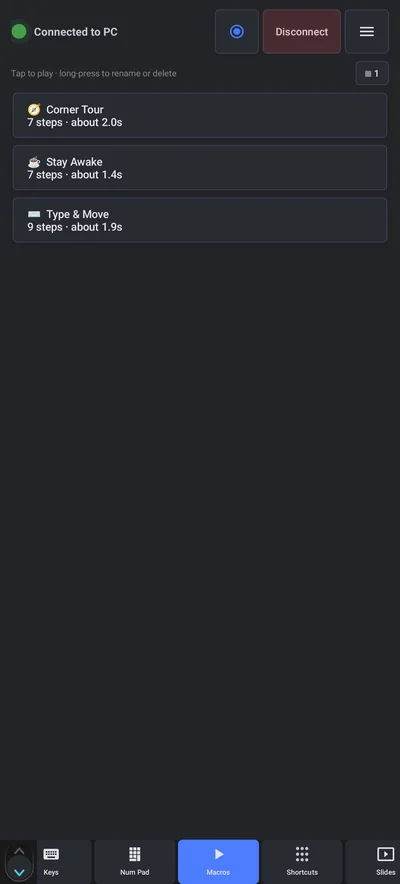
Tap the macro to play it. You can play it once, repeat it in a loop, or set a timer. Use Pause or Stop to interrupt it, and Background to keep it running with the phone screen off.
Make it reliable
- Prefer keys to clicks. Tab and Enter replay more reliably than mouse clicks, because a click depends on exactly where a window opens.
- Leave natural pauses. Programs open at different speeds. If the macro types before a window is ready, record it again with a longer wait.
- Start from a clean desktop. A macro recorded with everything closed behaves better when you play it with everything closed.
- Keep the same screen layout. If you move the taskbar or change the display, mouse steps may land in the wrong place.
- Test it before you rely on it. Watch it once, and fix the step that went wrong.
- Never record a password. A macro stores the keys you pressed on the phone, in plain form. Sign in with a password manager or by hand.
Or use shortcut buttons instead
Not everything needs a macro. The Shortcuts tab holds one-tap buttons. Tap Add and choose a type: a program, a macro, a key combination or a link. A link button opens a website, and a software button launches a program. You can give each an emoji or your own image, and use tags to build pages such as Work and Personal.
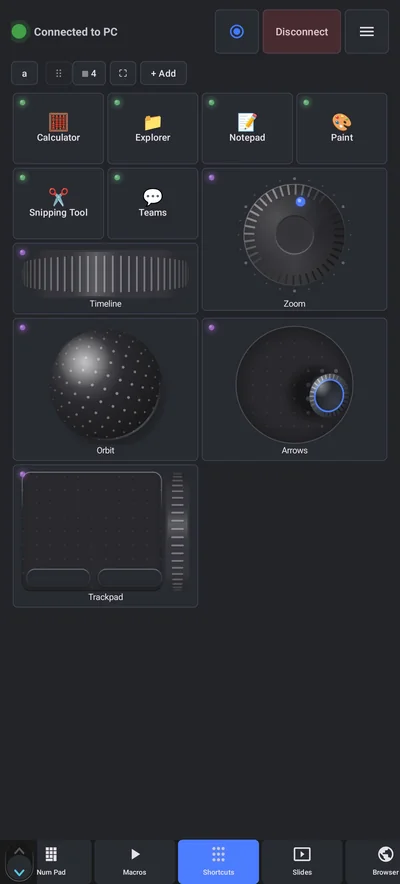
A mix works well: shortcut buttons for each program, and one macro that opens the whole set in order. Use Full screen to turn the pad into a launcher you can rotate and add a clock to.
An end-of-day macro
Record a second macro for the way out: close the programs, save what needs saving, and shut down. For a plain shut down you do not need a macro at all. The Windows tab has Lock, Sleep, Restart, Shut Down and Sign Out buttons, and Shut Down asks you to confirm before it does anything.
Save it, share it, back it up
Long-press a macro to rename, delete or export it. Export your macros and shortcuts to one file and import it on another phone, or share it with a teammate who has the same routine. The guide to .mti files explains how. If you want a macro to keep the PC awake while you read or think, see how to keep Windows awake.
Questions people ask
Can I open several programs and websites with one tap?
Yes. Record a macro that launches each program and website in order, then play it from the Macros tab. A shortcut button can open a single program or link.
Do I need to install software on the PC for macros?
No. The macro is stored on your phone and plays over Bluetooth, so the PC just sees keyboard and mouse input.
Why does my macro sometimes miss a step?
A click depends on where a window opens, and a program may open slower than your pause. Use keys such as Tab and Enter instead of clicks, add a longer pause, and re-record.
Can I make the macro repeat?
Yes. You can play it once or on a loop, with a delay between loops and a stop timer, and you can keep it running in the background with the screen off.
Can I record a password in a macro?
You should not. A macro stores the keys you pressed. Use a password manager, or type the password yourself.
Can I share my macros with a colleague?
Yes. Export them to a .mti file and send it. They import it on their own phone.
Keep reading
Record your morning once
Never Away is free on Google Play. Nothing to install on your PC.
For reference. Steps and screens described here are as they appear in Never Away and in Windows at the time of writing, and menu names can differ between versions of Windows, Android and other software, so test any setup before you depend on it. Never Away is an independent app by Trishunya Infotech. Windows, Microsoft Teams, PowerPoint, Excel, AutoCAD and Bluetooth are trademarks of their respective owners and are named only to describe what the app works with. Follow your employer's IT and security policies when you use any tool on a work computer.