Change the Windows power and sign-in settings first, since that needs nothing extra. If a company policy forces a lock, or you want a temporary fix, use Microsoft PowerToys Awake or a phone macro. In Never Away, record a small mouse movement as a macro, choose Repeat on a loop, set a delay and a stop timer, and the PC receives input without any software on it.
Why Windows locks when you are working
Windows decides you have left by watching for input. No key press and no mouse movement for a set time, and it dims the screen, then locks or sleeps. A chat app such as Microsoft Teams works the same way: after a few minutes without input it can switch your status to Away, and a locked or sleeping PC does the same.
The problem is that plenty of real work makes no input. You review a printed drawing, do a calculation on paper, listen to a long call, read a document, or wait for a render or a large export to finish. The PC cannot tell the difference between that and walking away.
Option 1: change the power and sign-in settings
This is the clean fix and the first one to try. In Windows 11:
- Screen and sleep. Settings, System, Power & battery, Screen and sleep. Set a longer time for the screen to turn off and for the PC to sleep.
- Sign-in after waking. Settings, Accounts, Sign-in options, and choose when Windows should ask you to sign in again if you have been away.
- Screen saver. If one is set, the option to show the sign-in screen on resume also locks the PC.
On a work laptop these settings are often controlled by company policy. If the options are greyed out, or reset themselves, an administrator has set them, and a change from your side is not expected.
Option 2: PowerToys Awake
Microsoft PowerToys is a free set of utilities from Microsoft, and one of them, Awake, keeps the PC from sleeping without touching your power settings. You can keep it awake indefinitely or for a set time. It needs PowerToys installed on the PC, so it is not an option if you cannot install software.
Option 3: a looping macro from your phone
If you cannot change the settings or install anything on the PC, the phone can send the input instead. In Never Away you record a short sequence once, for example a small mouse movement, and play it on a loop. The PC sees ordinary keyboard and mouse input from a Bluetooth device, so it needs no software.
The loop dialog has the controls you need:
- Play once or Repeat on a loop.
- Delay between each loop, in milliseconds.
- Stop after, in minutes, where 0 means never. Set a limit so it does not run all night.
- Beep sound, a soft tick after each loop and a louder beep when it finishes, so you know it is still running.
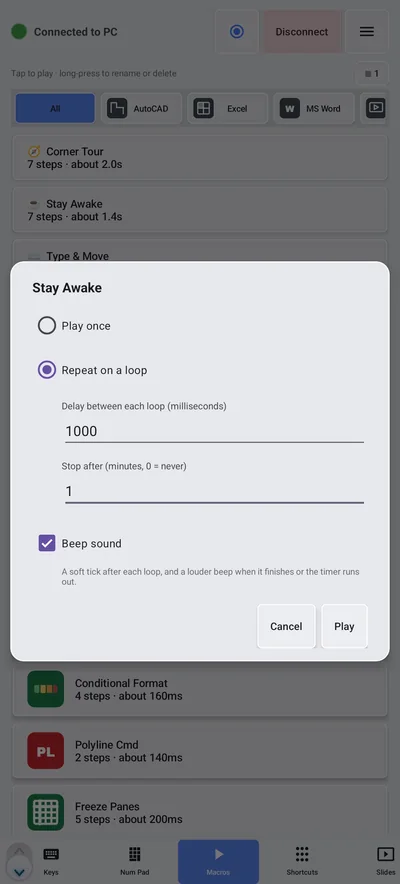
You can also tap Background so the macro keeps running with the phone screen off. Keep the app open and allow it to run in the background in Android's battery settings, or the system may close it.
Option 4: a hardware mouse jiggler
A small USB gadget that moves the pointer on its own does the same job. It is another device to carry and it needs a free USB port. Some companies block unknown USB devices.
Which one to use
| Method | Software on PC | Needs admin rights | Best for |
|---|---|---|---|
| Power and sign-in settings | None | Sometimes | Your own PC, long-term |
| PowerToys Awake | Yes | To install | Your own PC, temporary or on a schedule |
| Phone macro (Never Away) | None | No | A PC you cannot install on, or a quick fix with a timer |
| Hardware jiggler | None | No | A spare USB port and a policy that allows it |
When not to do this
These tools are for real work that happens away from the keyboard. They are not a way to fake attendance. Your employer may track activity, require the screen to lock for security, or have rules about tools like this. If the company enforces a lock, do not try to get around it, and if you are unsure, ask your IT team. Locking a PC is a security feature, so on a shared or public computer leave it on.
The macro, step by step
- Connect the phone to the PC (see how to pair it).
- Open the Macros tab and tap the red Record button. A red banner shows it is recording.
- Use the Mouse tab to make one small, harmless movement, such as nudging the cursor and moving it back.
- Tap Stop, name the macro, pick an icon and save it.
- Tap the macro, choose Repeat on a loop, set the delay and a stop timer, keep the beep on, and tap Play.
- Check that the screen stays on, then use the timer so it ends when you expect to be back.
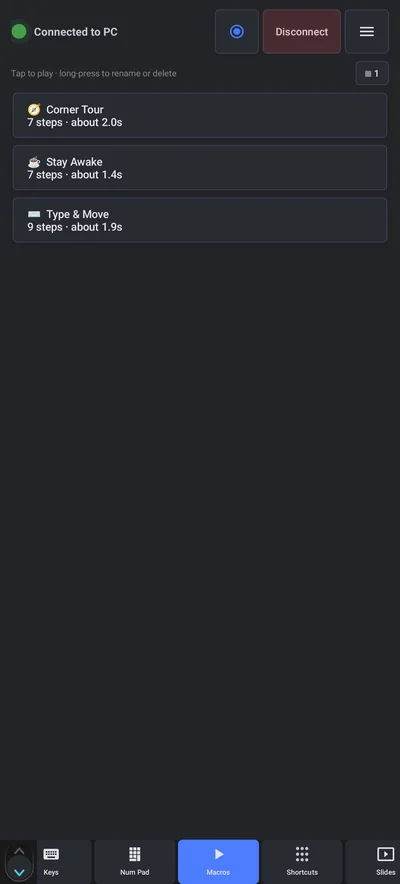
A macro in the list shows its step count and length, for example seven steps in about 1.4 seconds. Mouse movements replay reliably when they are small and the window under the cursor does not change.
Questions people ask
How do I stop my PC from locking when I am working on paper?
First lengthen the screen and sleep times and the sign-in delay in Windows settings. If you cannot change them, keep the PC receiving input with PowerToys Awake or with a looping macro from your phone.
Is there a mouse jiggler that needs no software on the PC?
A hardware USB jiggler or a Bluetooth phone macro both need nothing installed on the PC, because the PC sees them as ordinary input devices.
Will it stop Teams from showing Away?
Teams looks at input and at whether the PC is locked, so steady input keeps it from going idle. Check your employer's rules before using any tool for this, and use it for real work, not to fake presence.
Can I leave the macro running overnight?
It is better not to. Set the Stop after timer in minutes so it ends by itself, and lock the PC when you leave it.
Does the macro work with the phone screen off?
Yes, if you tap Background and allow the app to run in the background. The phone needs to stay within Bluetooth range of the PC.
Will this get around a company security lock?
It should not, and you should not try. Many companies enforce locking through policy. Ask your IT team if a lock gets in the way of real work.
Keep reading
Record it once, play it on a loop
Never Away is free on Google Play. Nothing to install on your PC.
For reference. Steps and screens described here are as they appear in Never Away and in Windows at the time of writing, and menu names can differ between versions of Windows, Android and other software, so test any setup before you depend on it. Never Away is an independent app by Trishunya Infotech. Windows, Microsoft Teams, PowerPoint, Excel, AutoCAD and Bluetooth are trademarks of their respective owners and are named only to describe what the app works with. Follow your employer's IT and security policies when you use any tool on a work computer.