Pair your phone with the PC through Never Away, open the Slides tab and press Start. Next and Previous move through slides, and buttons for Laser, Pen, Black and White do the rest. The app presses the normal PowerPoint shortcut keys, so nothing needs to be installed on the presenting PC. Pair before the audience arrives, and check the range.
Why use a phone as a clicker
A dedicated clicker is a small gadget with a USB dongle, and you have to remember it. Your phone is already in your pocket. The catch with most phone apps is that they need software on the PC, which you often cannot install on a venue computer or a client's laptop.
Never Away avoids that. It pairs as a Bluetooth keyboard, so it sends the same keys you would press yourself, and Windows already accepts those.
Set it up
- Pair the phone with the PC once, using the steps in the pairing guide. Do this before the day, not on stage.
- Open the presentation in PowerPoint on the PC.
- In the app, open the Slides tab. If you do not see it, swipe the tab bar along.
- Press Start to begin the slide show.
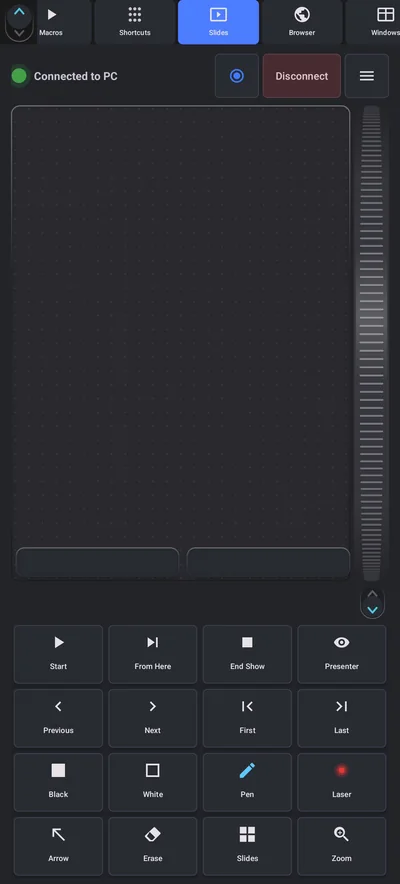
The Slides buttons and the keys behind them
Each button is a button press you could make on a keyboard. Knowing the key helps if the phone is not to hand. These are the standard PowerPoint shortcuts for a slide show:
| Never Away button | What it does | PowerPoint shortcut |
|---|---|---|
| Start | Starts the show from the first slide | F5 |
| From Here | Starts the show from the current slide | Shift + F5 |
| Next, Previous | Move one slide forward or back | Right and Left arrow, or N and P |
| First, Last | Jump to the first or last slide | Home and End |
| Black, White | Blank the screen to black or white | B and W |
| Pen | Draw on the slide | Ctrl + P |
| Laser | Use the pointer as a laser | Ctrl + L |
| Arrow | Back to the normal pointer | Ctrl + A |
| Erase | Erase ink | E |
| End Show | Leave the slide show | Esc |
The shortcuts above are PowerPoint's. Other presentation software has its own, so test it. The Slides tab also has a trackpad above the buttons, so you can point or click without switching tabs.
Tips for a smooth presentation
- Pair at your desk, then test in the room. Stand where you will present and run through a few slides. Bluetooth range is about 10 metres (33 ft) in open space, less through people and walls.
- Keep the phone from locking. Set the phone screen timeout longer, or use the app's Auto-lock option in its menu, so the screen does not go dark halfway through.
- Charge the phone. A Bluetooth session and a bright screen use battery.
- Silence notifications. Turn on Do Not Disturb so a message does not pop up while you present.
- Use Black to take back attention. Blanking the screen makes the room look at you.
- Mind the old pairing. If the phone was paired to the PC before as a plain Bluetooth device, remove that pairing first.
Other apps and keys
The same approach works for other software. The Browser tab has tabs, back, refresh, zoom and find, which suits a web-based deck. The Media tab has a volume dial and playback buttons for audio and video that you play between slides. The volume dial guide covers it.
A backup plan
Technology fails at the worst moment. Know the keys, keep the laptop's own trackpad within reach, and carry the presentation on a USB drive. If Bluetooth drops, press the arrow keys on the PC and carry on.
Questions people ask
Can I control PowerPoint from my phone without installing anything on the PC?
Yes. With Never Away the phone is a Bluetooth keyboard and mouse, and the Slides tab sends the standard PowerPoint keys, so the PC needs no extra software.
Does the phone have a laser pointer?
The Slides tab has a Laser button that turns on PowerPoint's laser pointer, and a trackpad to move it. It is the software pointer on the slide, not a light from the phone.
How far away can I stand?
Within Bluetooth range, about 10 metres (33 ft) in open space. Test in the actual room.
Does it work with Google Slides or Keynote?
The buttons send keyboard keys, so anything that responds to the same keys will respond. Test it, because shortcuts differ between programs.
Can I draw on slides with the phone?
The Pen button turns on PowerPoint's pen, and the trackpad draws. Erase removes ink.
What if Bluetooth drops during the talk?
Press the arrow keys on the PC to continue, and reconnect afterward. The app reconnects by itself when the devices are in range.
Keep reading
Present from your pocket
Never Away is free on Google Play. Start, advance and annotate slides from your phone.
For reference. Steps and screens described here are as they appear in Never Away and in Windows at the time of writing, and menu names can differ between versions of Windows, Android and other software, so test any setup before you depend on it. Never Away is an independent app by Trishunya Infotech. Windows, Microsoft Teams, PowerPoint, Excel, AutoCAD and Bluetooth are trademarks of their respective owners and are named only to describe what the app works with. Follow your employer's IT and security policies when you use any tool on a work computer.