In WhatsApp open Settings, Storage and data, Manage storage. It lists chats by size and shows large files. Before you delete anything, save the files you need: open each, tap Share, and pick SaveLocal. Then delete the rest, and turn off media auto-download so it does not refill. Keep your own backup of important files.
Why WhatsApp fills a phone
Every photo, video, voice note and document in every chat can be stored on the phone. Group chats are the worst: a hundred people sharing videos fills storage fast. Forwarded videos and memes that travel through many groups are common culprits. You rarely delete them, because you cannot tell at a glance which ones matter.
Step 1: save what matters
Before you delete anything, copy the files you need into a normal folder. Open the file, tap Share, and pick SaveLocal. It goes to Downloads, or your own folder, with its original name. For many files, select them all and share once. See saving many at once.
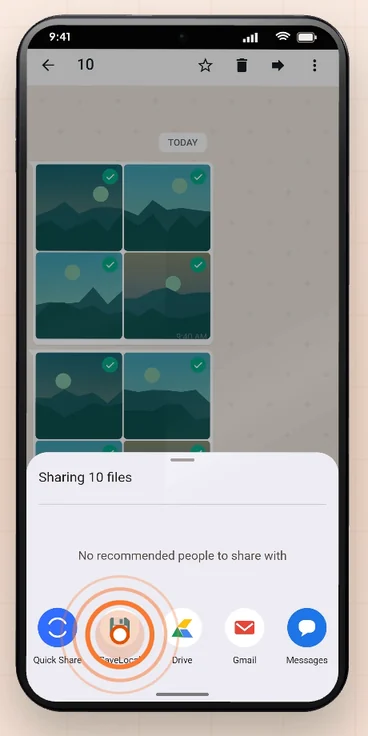
Then check that the files are really in Downloads, using Recent Saves in SaveLocal or your Files app.
Step 2: find the big chats
- In WhatsApp open Settings, then Storage and data, then Manage storage.
- Look at the list of chats, sorted by how much space each uses. The top few usually hold most of it.
- Use the filters for large files, and for files forwarded many times, to find the biggest and most pointless items.
Step 3: delete what you do not need
- Select and delete items from a chat's storage page rather than the whole chat, so the messages stay.
- Clear media only from the largest group chats if you do not need them.
- Deleting a chat can remove its files from the phone, so only do it once the important ones are saved.
- Check the phone's own storage settings afterward to see how much you freed.
Step 4: stop it refilling
Open Settings, then Storage and data, then Media auto-download. Choose which types of file download automatically on mobile data, on Wi-Fi and when roaming. Turning off auto-download for videos and documents, or for all media, keeps the phone from filling with files you never open. You can still tap any file to download it when you want it.
A five minute routine
| Step | Time |
|---|---|
| Save the files you want to keep with SaveLocal | 2 min |
| Open Manage storage and look at the top chats | 1 min |
| Delete large and forwarded files you do not need | 1 min |
| Check Media auto-download settings | 1 min |
SaveLocal is not a backup service. Copy the saved files to a computer or a cloud drive as well. See why files go missing if you want the reasoning behind saving first.
Questions people ask
How do I see what is using space in WhatsApp?
Open Settings, Storage and data, Manage storage. It lists chats by size and has filters for large files.
Will deleting media delete my messages?
Deleting selected files from storage leaves messages. Deleting a whole chat removes it, and its files can go too.
How do I stop WhatsApp saving everything automatically?
Open Settings, Storage and data, Media auto-download, and turn off the types you do not need.
How do I keep an important file before I delete a chat?
Open it, tap Share and pick SaveLocal. It is copied to Downloads with its original name.
Can I free space without deleting anything?
Save the files you need to Downloads and copy them to a computer or cloud drive, then remove them from the chats.
Does SaveLocal back up my files?
No. Keep separate backups of anything important.
Keep reading
Save first, then clear
SaveLocal is free on Google Play. Keep what matters before you delete the rest.

For reference. Steps and screens described here are as they appear in SaveLocal, and menu names and folder paths can differ between phone makers and versions of Android and WhatsApp, so check them on your own phone. SaveLocal saves what another app shares with it, so the result depends on what that app allows. It is not a file manager and not a backup service, so keep separate copies of anything important. You are responsible for having the right to keep the files you save. WhatsApp, Telegram, Gmail, Chrome and other app names are trademarks of their owners and are used only to describe what SaveLocal works with.