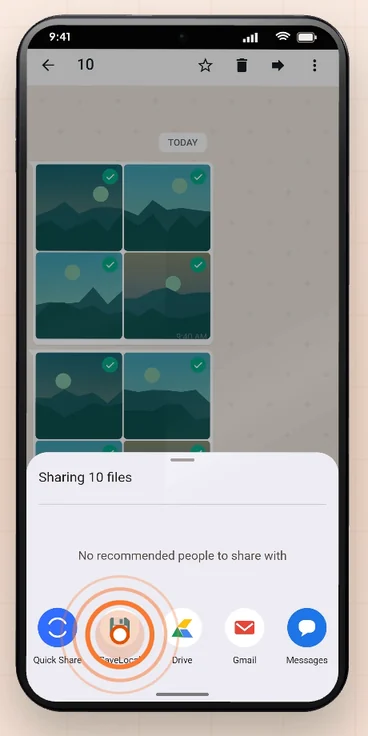
In the chat, long-press one photo, tap the others to select them, then tap Share and pick SaveLocal. A card counts the files as they save, for example four of ten, and every file lands in Downloads with its original name. If one fails, the rest still save and the last message tells you the real count.
The problem with one at a time
A relative posts twenty photos from a trip, or a client sends eight invoices as separate files. Saving each by hand means open, tap, save, repeat, and it is easy to miss one. A batch should take the same two taps as a single file.
Select, share, done
- In the chat, long-press a photo to start selecting, then tap the others you want.
- Tap Share. Android shows the share sheet with the number of files, such as Sharing 10 files.
- Pick SaveLocal.
- Watch the card count up. When it finishes, you are back in the chat with everything saved.
Selecting from Media, links and docs
To grab files from further back in a chat, open the chat, tap its name at the top, and open Media, links and docs. Long-press an item to start selecting, tap the rest, and use the share icon at the top. Then pick SaveLocal from the share sheet.
Reading the progress card
- A spinning ring means SaveLocal is copying your file.
- The title shows the count, such as saving four of ten.
- The name below is the file being copied.
- The ring turns into a check and says Saved to Downloads, then the card closes.
Files are copied in small pieces, so large videos do not use up your phone's memory. If one file fails, the rest are still saved, and the last message gives an honest count of how many made it.
Tips for big batches
- Download first. Anything still showing a download arrow is not on the phone yet.
- Check the count. Open Recent Saves in SaveLocal and compare it with what you selected. See where to find saved files.
- Mind the space. Twenty videos take much more room than twenty photos. Check free storage before a large batch.
- Use a folder per project. If you keep sets together, pick a custom folder in Settings. See how to change the save folder.
- Duplicates are safe. If a file name already exists, the new copy gets a number in brackets and nothing is replaced.
Questions people ask
How do I save all the photos from a WhatsApp chat at once?
Select the photos, tap Share and pick SaveLocal. For older photos, open Media, links and docs from the chat name and select from there.
Can I save videos in bulk too?
Yes. SaveLocal saves any file type, and videos are copied in small pieces so they do not use too much memory.
What if one file fails?
The others still save, and the last message tells you how many were saved.
Does the batch keep file names?
Yes. Each file keeps its original name. If a name already exists, the copy gets a number in brackets.
Is there a limit on how many files I can save?
SaveLocal does not set one, but WhatsApp and Android may limit how many items you can select or share at once. If so, do it in groups.
Where do the files go?
To your Downloads folder, or the folder you chose in Settings.
Keep reading
Twenty photos, two taps
SaveLocal is free on Google Play. Select, share once, and watch every file save.

For reference. Steps and screens described here are as they appear in SaveLocal, and menu names and folder paths can differ between phone makers and versions of Android and WhatsApp, so check them on your own phone. SaveLocal saves what another app shares with it, so the result depends on what that app allows. It is not a file manager and not a backup service, so keep separate copies of anything important. You are responsible for having the right to keep the files you save. WhatsApp, Telegram, Gmail, Chrome and other app names are trademarks of their owners and are used only to describe what SaveLocal works with.