Save each expense as it happens: convert, tap Save, pick a category and add a photo of the receipt. At the end, export a PDF statement with a date on every entry and the receipt photos inside, plus a CSV for the finance team. If the trip crosses borders, each country gets its own trip and you can export them all together as PDF, CSV, KML or one ZIP.
The end-of-trip scramble
You come home with a pile of receipts in a language you do not read, a card statement in your home currency, and a form that wants every expense in one currency by category. Half of the receipts have faded. A shoebox is not a system.
Save as you spend
- Open the widget and type the price, so you see it in your home currency.
- Tap Save.
- Pick the category and whether you paid in cash or card.
- Add a photo of the receipt. The photo stays on your phone.
That is an expense, filed under today. If you saved a location, it also appears on the trip map.
Categories and payment type
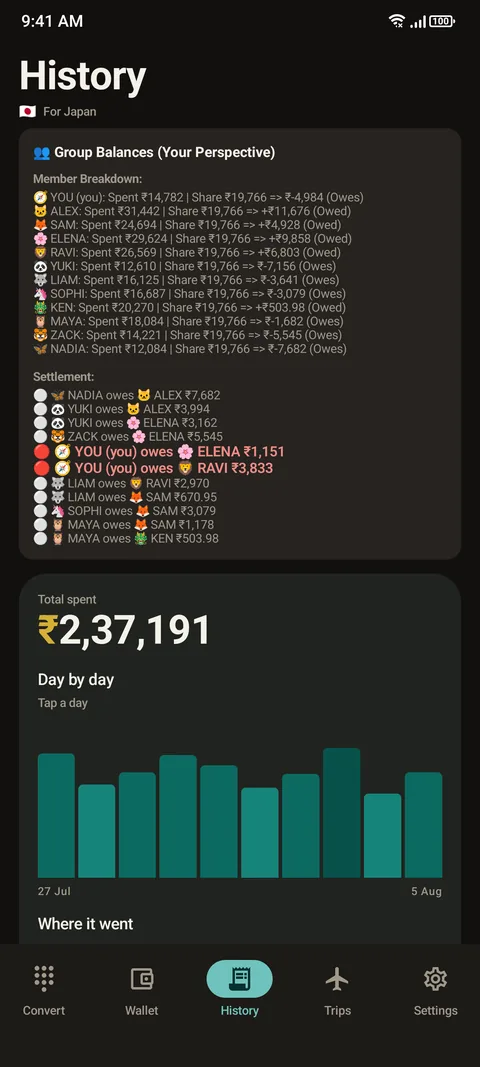
Ready-made categories, such as food and drink, transport, stay, shopping and tickets and activities, cover most claims. Choose cash or card for each entry. History then shows where the money went by category, how it was paid, and what each day cost, in your home currency.
Several countries on one trip
Cross a border and Here & Home notices the new country. Each country gets its own trip, with its own currency and budget, and your expenses land in the right one. If you take two trips to the same country, it numbers them for you. At the end you can export every trip together.
Export it
From the Trips tab, use Export all or the export menu on a trip. You can choose:
| Format | What you get | Good for |
|---|---|---|
| PDF statement | Totals, a map, settle-up, every entry with a date, and a section of receipt photos | Attaching to a claim or sharing with a group |
| CSV | Raw data for a spreadsheet | Finance teams, pivot tables, your own totals |
| KML | A map file of the places you saved | Google Earth and other map tools |
| ZIP | Everything together | Archiving a whole trip |
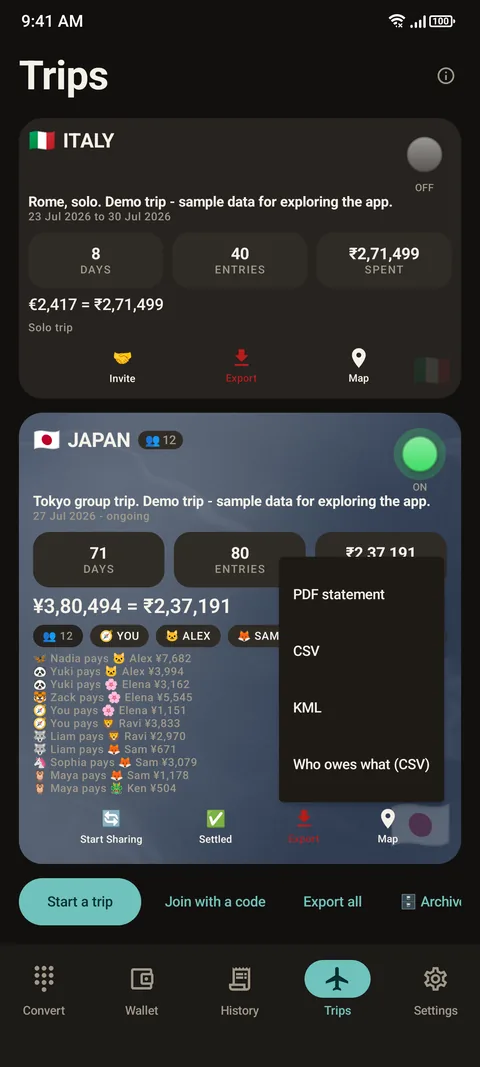
If you share a trip with a group, the same PDF gives everyone the same numbers. See how to split trip expenses.
Before you submit the claim
- Check your employer's rules on which exchange rate to use, and on whether card statement amounts must be used instead of market rates. Rates in Here & Home are indicative.
- Keep the original paper receipts if your employer or tax rules require them. A photo may not be enough.
- Check that tax, tips and card fees are in the categories your form expects.
- Remove personal items before you send the file.
This is general information, not accounting or tax advice. Ask your finance team what they accept.
Questions people ask
How do I make an expense report from a business trip?
Save each expense as you spend it with a category and a receipt photo. At the end, export a PDF statement and a CSV.
Do the receipt photos go into the PDF?
Yes. The PDF statement includes a receipt photos section.
Can I export to a spreadsheet?
Yes. Export a CSV for your finance team.
What if I visit several countries?
Each country gets its own trip automatically, and you can export all trips together as PDF, CSV, KML or one ZIP.
Where are my receipts stored?
Receipt photos stay on your phone unless you export them or share a trip.
Will my employer accept the PDF?
It depends on their rules. Check which exchange rates and receipts they accept.
Keep reading
Expense reports, done on the road
Here & Home is free on Google Play. Save as you spend, export when you are done.

For reference. Steps and screens described here are as they appear in Here & Home, and menu names can differ between versions of Android and the app. Exchange rates and prices in examples are illustrative, and rates in Here & Home are indicative, updated periodically and not financial quotes. Emergency numbers, phrases, country facts and survival tips are general information given on a best-effort basis: check them before you travel, and do not rely on any app alone in a life-threatening emergency. Here & Home is a field companion, not a financial or emergency service. Trademarks are those of their owners and are used only to describe what the app works with.