The share sheet lists apps that have told Android they can receive a file. Most of them send it somewhere: a chat, an email, the cloud. None of them simply keeps it on your phone. Installing SaveLocal adds that missing target. Open any file, tap Share, pick SaveLocal, and the file is copied to Downloads with its original name.
What the share sheet is
When you tap Share on a photo, a PDF or a video, Android opens a panel of choices. That panel is the share sheet. Apps appear in it because they have told Android that they can receive a file or some text. When you pick one, Android hands the file over, and the app does whatever it is built to do with it.
That is why the same share button works in WhatsApp, Gmail, Chrome and Files. They all use the same system feature.
What it is missing
Look at a typical share sheet: messaging apps, email, cloud drives, a nearby share option, maybe a notes app. Every one of those sends the file onward or stores it in an app's own space. A plain action that means keep a copy on this phone, in a normal folder, is often not there. Some phones and apps add a Save to device option of their own, but it is not reliable, and it is different from phone to phone.
Adding Save
SaveLocal is a small app that does one job: it registers itself as a share target for files, and when you pick it, it copies the file to your Downloads folder, or to a folder you chose. That is the Save action the share sheet lacks.
- Install SaveLocal from Google Play and open it once.
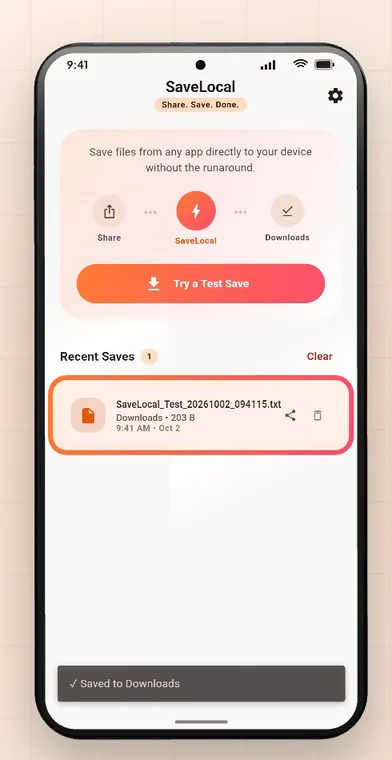
- Tap Try a Test Save. A small test file lands in Downloads, so you can see it work.
- From now on SaveLocal appears in the share sheet of any app that shares a file.
Using it
- Open the file in the app you are in, or select several files.
- Tap Share.
- Tap the SaveLocal icon.
A card shows that the file is saving, and says Saved to Downloads. A moment later it is gone and you are back where you were. With a batch, the card counts the files as it goes.
Make it easy to reach
If SaveLocal is not in the first row of apps, scroll the row or tap More. Some phones let you pin an app to the front of the share sheet, by long-pressing its icon or by editing the list. The exact steps depend on your phone maker and Android version.
Why not just use each app's own save?
Because each app does it differently, and some do not do it at all. See saving from Gmail, Telegram and Chrome. With the share sheet you have one habit that works everywhere, and your files end up in one folder with their original names. For WhatsApp in particular, see how to save WhatsApp files.
Questions people ask
What is the Android share sheet?
The panel of apps that appears when you tap Share. It lists apps that can receive the file or text you are sharing.
Why is there no Save option in the share sheet?
Most targets send a file onward, and Android does not add a plain Save to device action by itself. An app such as SaveLocal can add it.
Does SaveLocal work with every app?
It works with any app that can share a file through the share sheet.
Where does the file go?
To your Downloads folder by default, or a folder you pick in Settings.
Can I put SaveLocal at the front of the share sheet?
Many phones let you pin or reorder share targets. The steps depend on your phone and Android version.
Does it need an account or internet?
No. It works offline, with no account.
Keep reading
Add the missing Save
SaveLocal is free on Google Play. Share. Save. Done.
For reference. Steps and screens described here are as they appear in SaveLocal, and menu names and folder paths can differ between phone makers and versions of Android and WhatsApp, so check them on your own phone. SaveLocal saves what another app shares with it, so the result depends on what that app allows. It is not a file manager and not a backup service, so keep separate copies of anything important. You are responsible for having the right to keep the files you save. WhatsApp, Telegram, Gmail, Chrome and other app names are trademarks of their owners and are used only to describe what SaveLocal works with.